Host and co-host controls in a meeting
The host of a meeting has all the management controls, e.g. the controls of the participants, the controls of the permission of sharing and recording. The co-host can be treated as the assistant of the host, having most of the management controls. The host can be set before the meeting starts, while the co-host can only be set during the meeting by the host. A co-host cannot make other participants co-host or host.
Prerequisites
- The local recording feature is only available on macOS and Windows.
Windows and macOS
The toolbar of the meeting shows what the host in a meeting can control.

Mute / Unmute
- The host can mute himself/herself when not talking so that other participants won't hear him/her.
- When muted, the host can unmute himself/herself to let all the participants in the meeting hear him/her.
Turn Video On / Off
- When the video is off, the host can turn the video on to let all the participants in the meeting see him/her.
- When the video is on and the host is in an inappropriate environment, he/she can turn off the video to avoid his/her video being seen by other participants.
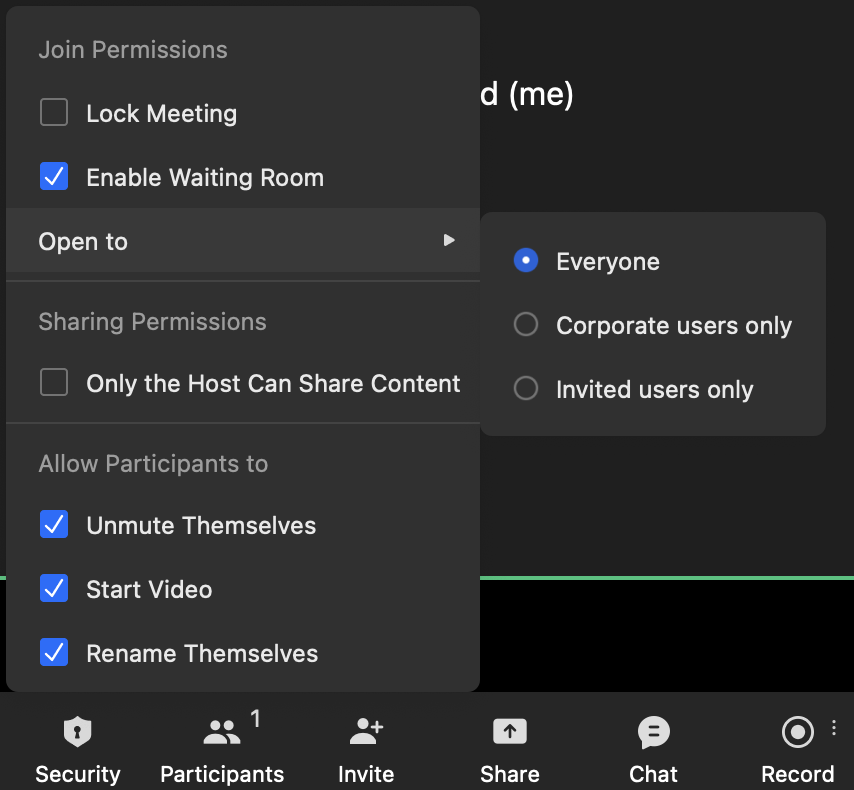
Security Only the host and the co-host can see the Security feature.
Lock / Unlock meeting
By default, the meeting is not locked, which means that participants can join the meeting at any time. If the host locks the meeting, new participants can't join the meeting anymore. The host can unlock the meeting again to let new participants join.
Set Meeting Access Restriction
The host can choose to change the meeting access type.
- Open to everyone: everyone can join the meeting if they get the meeting link, or the meeting ID and password.
- Open to Corporate users only: only the users that are in the same workspace with the host can join the meeting.
- Invited users only: only the users that are invited by the host before or during the meeting can join the meeting.
Control Participant Permissions The host can enable or disable the participants' permission by simply clicking the checkbox.
- Check the checkbox to allow the participants to unmute themselves.
- Check the checkbox to allow the participants to start the video by themselves.
- Check the checkbox to allow the participants to share content.
- Check the checkbox to allow the participants to chat in the meeting.
- Check the checkbox to allow the participants to use local recording in the meeting. Please note that local recording is only available on macOS and Windows.
Invite
In a meeting, the host can invite the users in his/her workspace to join the meeting by calling them. By clicking on the Invite button, the host can see the pop-up window of all the contacts in his/her workspace, he/she can choose one or more users to call.
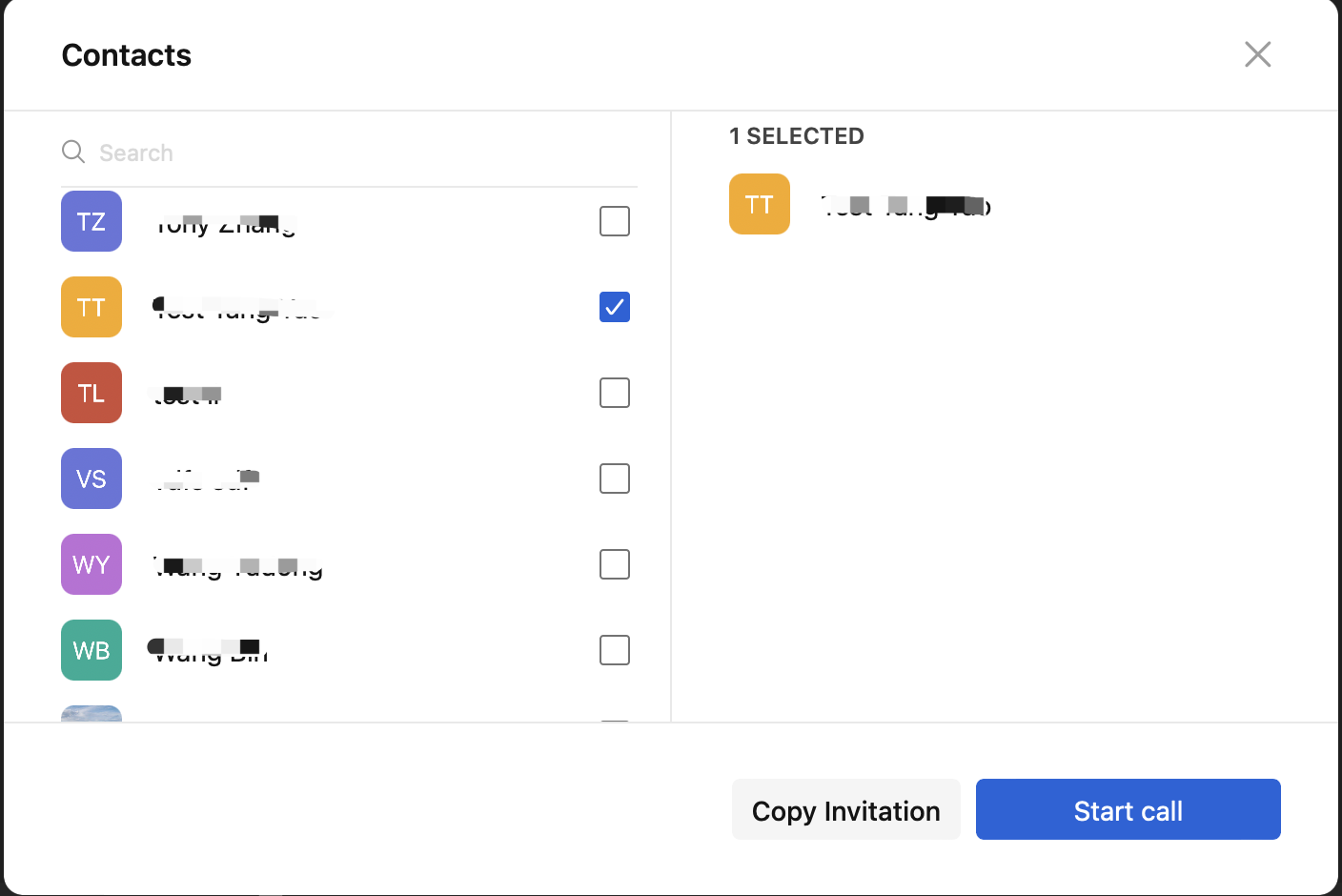
The users that are called by the host will receive a calling, and they can choose to reject or answer the call to enter the meeting.
Participants List
Action on Host
In the Participants List, hosts can manage themselves in the following ways.
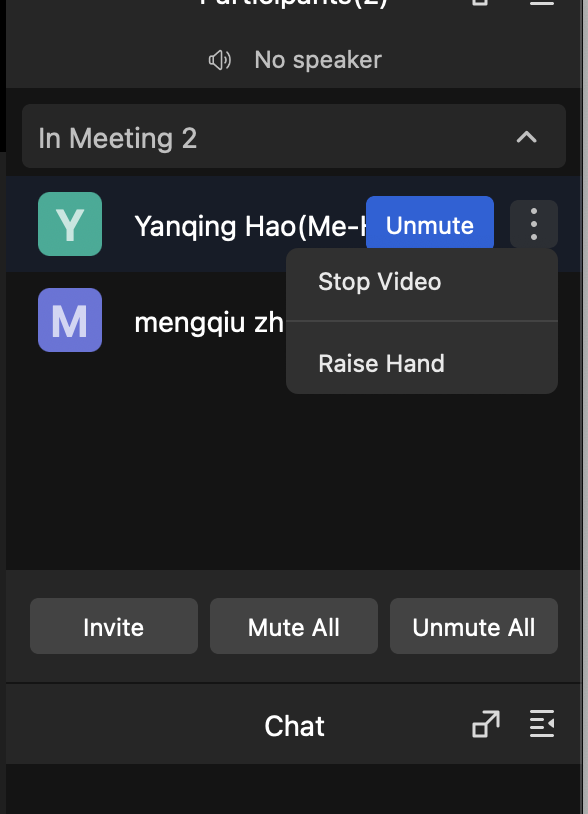
- Mute/Unmute: mute / unmute himself/herself.
- Enable/Disable camera: start or stop his/her video to other participants.
- Focus/Cancel focus: set his/her own video shown in the central panel on his/her own screen.
- Broadcast/Stop broadcast: set his/her own video shown in the central panel on every participant's screen.
- Rename: the host and co-host can rename themselves so that the participants in the meeting will see their new name.
- Relinquish host role: the host can relinquish the host role to be a normal participant.
Action on Participants
In the Participants List, the host and the co-host can manage all the participants in the following ways.
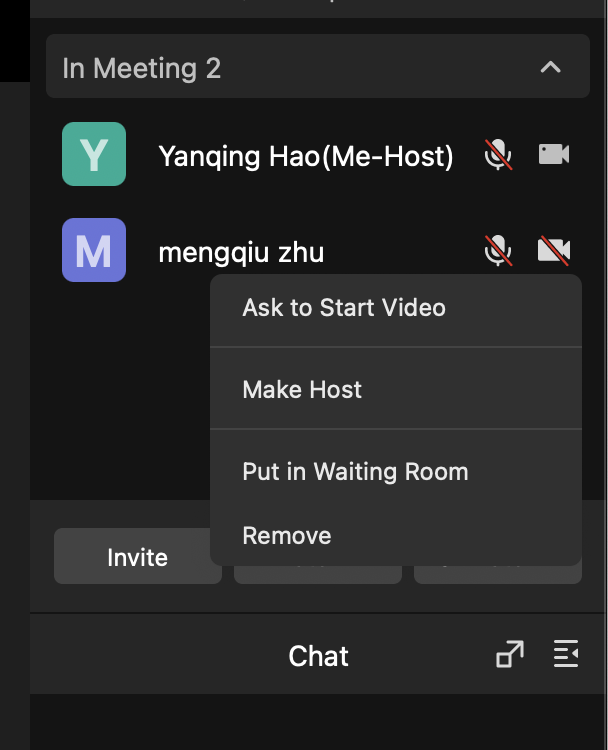
- Mute/Unmute: mute/unmute the participant.
- Enable/Disable camera: start or stop the participant's video to other participants.
- Focus/Cancel focus: set the participant's video shown in the central panel on the host's own screen.
- Broadcast/Stop broadcast: set the participant's video shown in the central panel on every participant's screen.
- Rename: the host/co-host can rename the participant so that the participants in the meeting will see the new name.
- Invite to share: invite the participant to share screen.
- Assign as host: by assigning another participant as host, the host is relinquishing the host role to be a normal participant.
- Set as co-host: the host can set another participant as co-host to help him/her control the meeting. The co-host owns all the permission except ending the meeting for all or setting other participants as co-hosts.
- Disconnect: disconnect the participant from the meeting. After disconnecting, the host can still see the participant on the participant list, and the host can still call him/her back to the meeting.
- Remove: remove the participant from the meeting. After removing, the host cannot see the participant on the participant list.
Share
The host can share the screen and other content by clicking the Share button on the toolbar. By default, the sharing permission is open to every participant and the host can cancel the permission for participants by unchecking the checkbox.
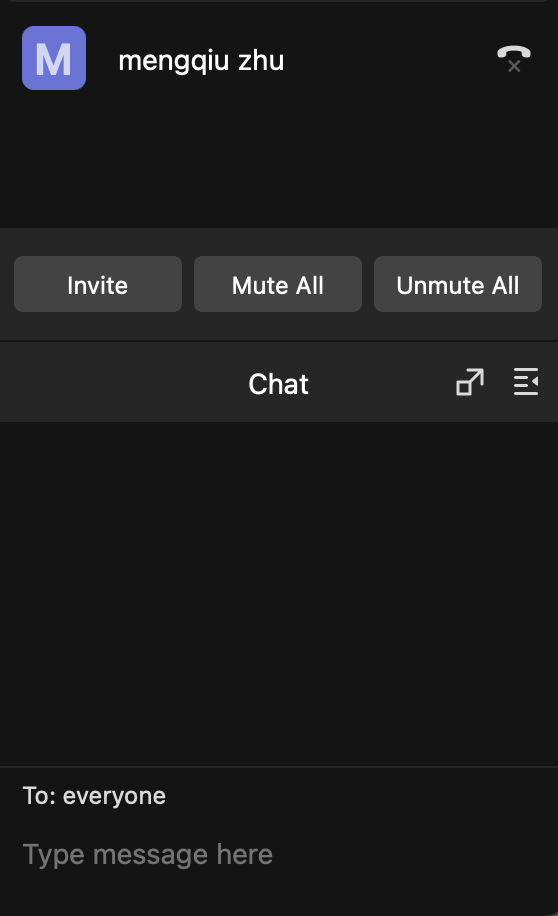
For more details about Share, please check .
Chats
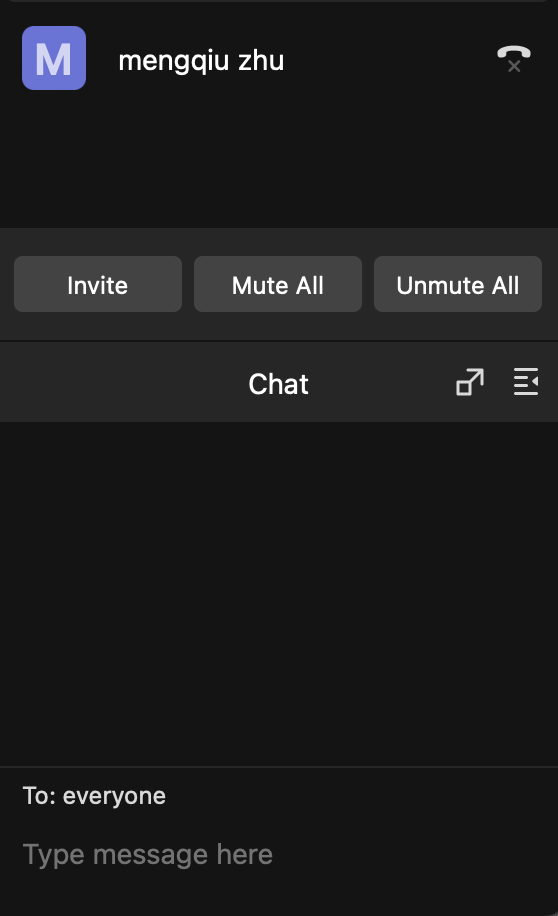
When the host cannot see the chat window, he/she can click the Chat button on the toolbar to show the chat window. The chat window will show at the bottom of the participant list.
Recording (Local Recording)
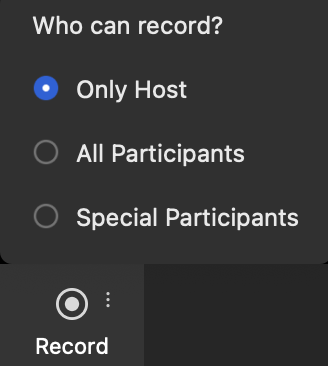
Only the host can record the meeting by default. The host can change the permission to enable all participants to record or to enable specific participants to record.
Leave & End Meeting
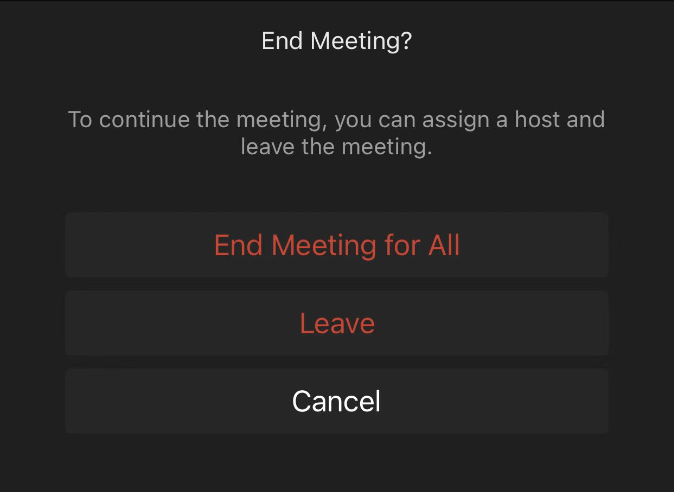
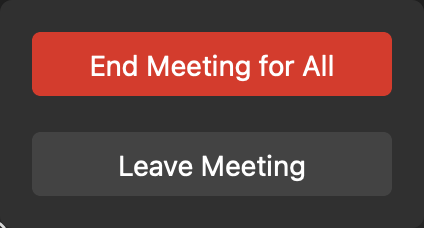
Leave: When leaving the meeting while there are still participants remaining in the meeting and the host left without assigning new host, then there will be no host in the meeting. No one can edit the control functions or the participants' permissions, nor end the meeting.
End for all: When the host left the meeting and he/she ends the meeting for all, then all the participants in the meeting will be forced to leave. No one else will remain in the meeting.
Android and iOS
The toolbar of the meeting shows what the host in a meeting can control.
 Mute / Unmute
The host can mute himself/herself when not talking so that other participants won't hear him/her.
When muted, the host can unmute himself/herself to let all the participants in the meeting hear him/her.
Turn Speaker On / Off
When the speaker is off, the host can turn the speaker on to let himself/herself hear the voices of other participants in the meeting without holding the phone close to the ear.
When the speaker is on and the host is in an inappropriate environment, he/she can turn off the speaker to avoid voices of the meeting being heard by others.
Turn Video On / Off
When the video is off, the host can turn the video on to let all the participants in the meeting see him/her.
When the video is on and the host is in an inappropriate environment, he/she can turn off the video to avoid his/her video being seen by other participants.
Share
The host can share the screen and other content by clicking the Share button on the toolbar. By default, the sharing permission is open to every participant, the host can cancel the permission for participants by unchecking the checkbox.
Participants List
Action on Host
In the Participants List, hosts can manage themselves in the following ways.
Mute / Unmute
The host can mute himself/herself when not talking so that other participants won't hear him/her.
When muted, the host can unmute himself/herself to let all the participants in the meeting hear him/her.
Turn Speaker On / Off
When the speaker is off, the host can turn the speaker on to let himself/herself hear the voices of other participants in the meeting without holding the phone close to the ear.
When the speaker is on and the host is in an inappropriate environment, he/she can turn off the speaker to avoid voices of the meeting being heard by others.
Turn Video On / Off
When the video is off, the host can turn the video on to let all the participants in the meeting see him/her.
When the video is on and the host is in an inappropriate environment, he/she can turn off the video to avoid his/her video being seen by other participants.
Share
The host can share the screen and other content by clicking the Share button on the toolbar. By default, the sharing permission is open to every participant, the host can cancel the permission for participants by unchecking the checkbox.
Participants List
Action on Host
In the Participants List, hosts can manage themselves in the following ways.
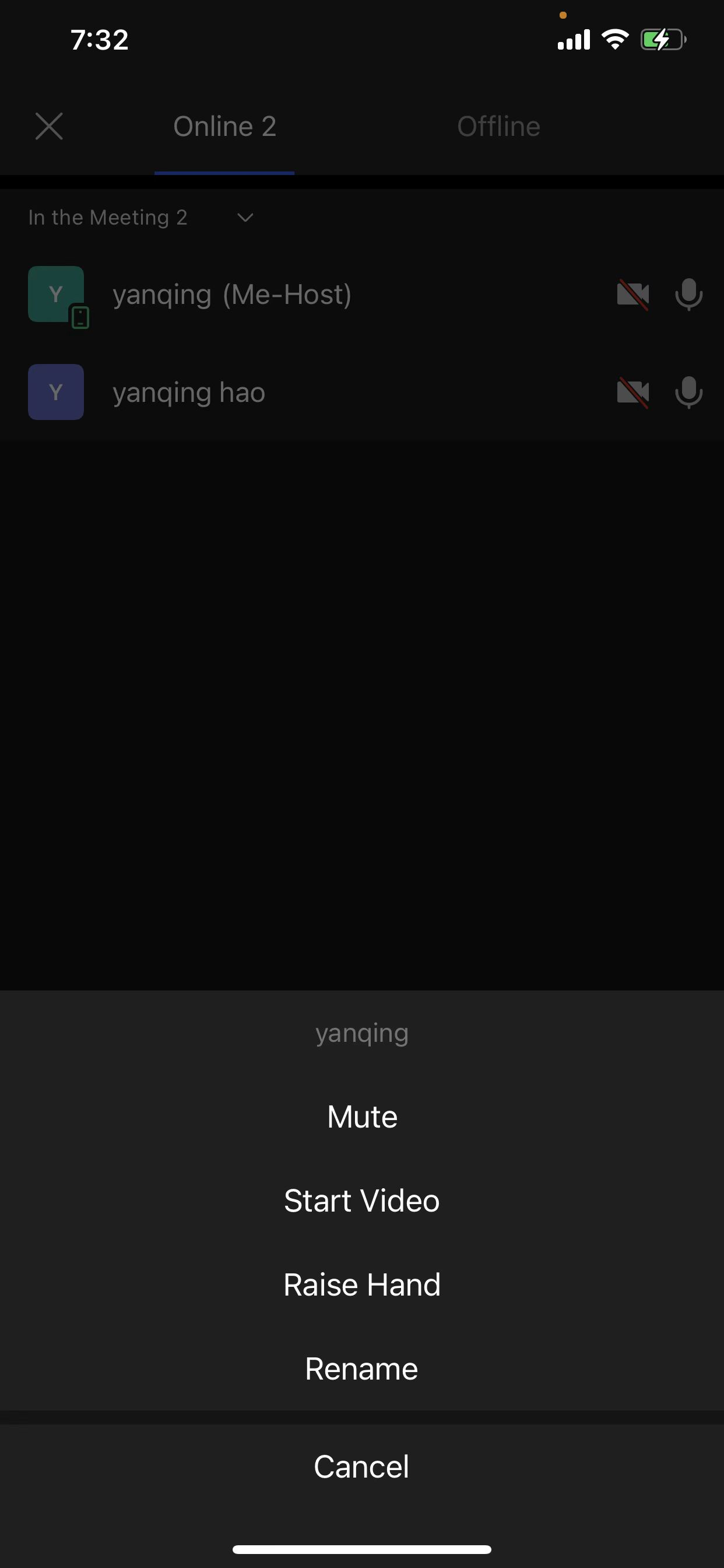 Mute/Unmute: mute / unmute himself/herself.
Enable/Disable camera: start or stop his/her video to other participants.
Raise Hand: the host can raise his hand, and there is a raise hand sign in the meeting.
Action on Participants
In the Participants List, the host and the co-host can manage all the participants in the following ways.
Mute/Unmute: mute / unmute himself/herself.
Enable/Disable camera: start or stop his/her video to other participants.
Raise Hand: the host can raise his hand, and there is a raise hand sign in the meeting.
Action on Participants
In the Participants List, the host and the co-host can manage all the participants in the following ways.
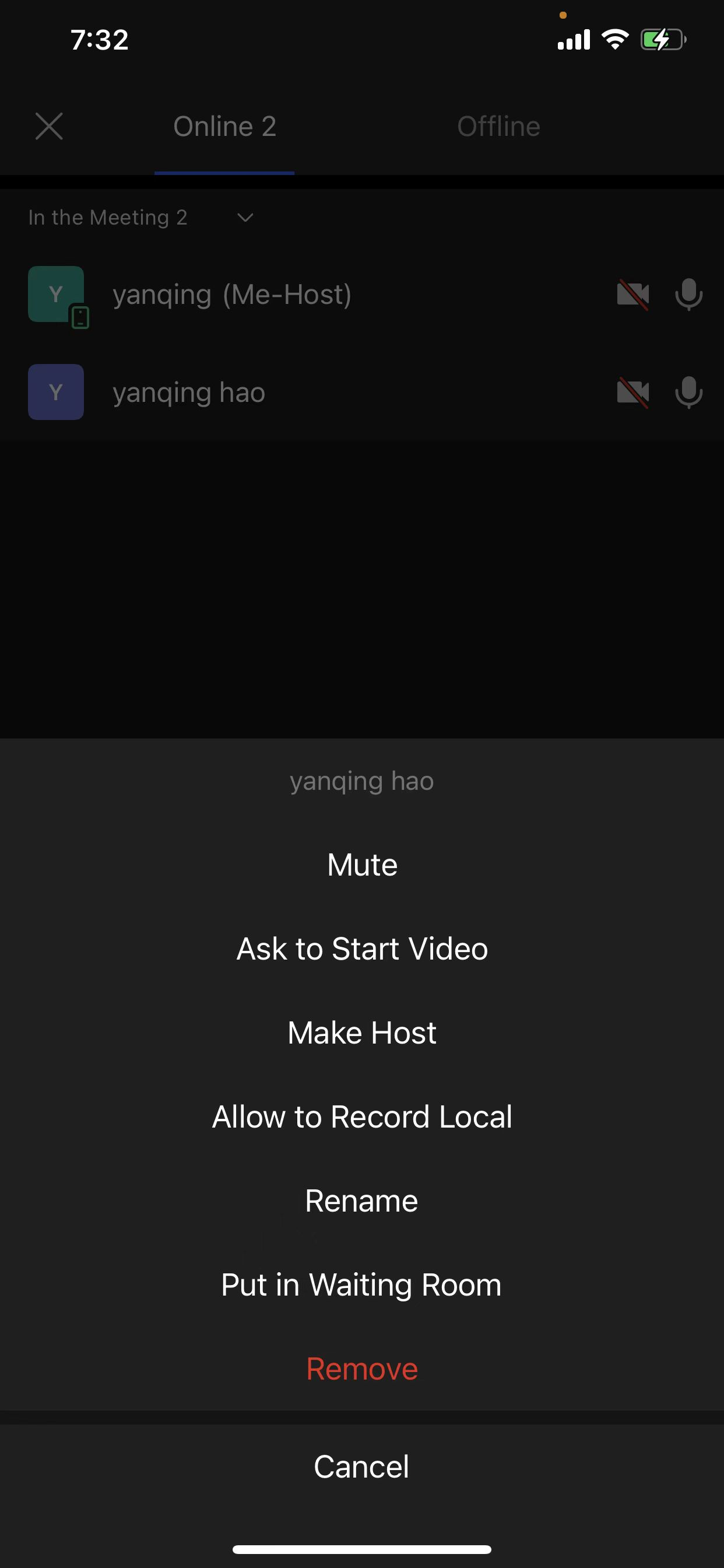 Mute/Unmute: mute/unmute the participant.
Enable/Disable camera: start or stop the participant's video to other participants.
Rename: the host/co-host can rename the participant so that the participants in the meeting will see the new name.
Assign as host: by assigning another participant as host, the host is relinquishing the host role to be a normal participant.
Remove: remove the participant from the meeting. After removing, the host cannot see the participant on the participant list.
Invite
In a meeting, the host can invite the users in his/her workspace to join the meeting by calling them. By clicking on the Invite button, the host can see the pop-up window of all the contacts in his/her workspace and he/she can choose one or more users to call.
The users that are called by the host will receive a call and they can choose to reject or answer the call by audio or by video.
More
Security
Only the host and the co-host can see the Security feature.
Mute/Unmute: mute/unmute the participant.
Enable/Disable camera: start or stop the participant's video to other participants.
Rename: the host/co-host can rename the participant so that the participants in the meeting will see the new name.
Assign as host: by assigning another participant as host, the host is relinquishing the host role to be a normal participant.
Remove: remove the participant from the meeting. After removing, the host cannot see the participant on the participant list.
Invite
In a meeting, the host can invite the users in his/her workspace to join the meeting by calling them. By clicking on the Invite button, the host can see the pop-up window of all the contacts in his/her workspace and he/she can choose one or more users to call.
The users that are called by the host will receive a call and they can choose to reject or answer the call by audio or by video.
More
Security
Only the host and the co-host can see the Security feature.
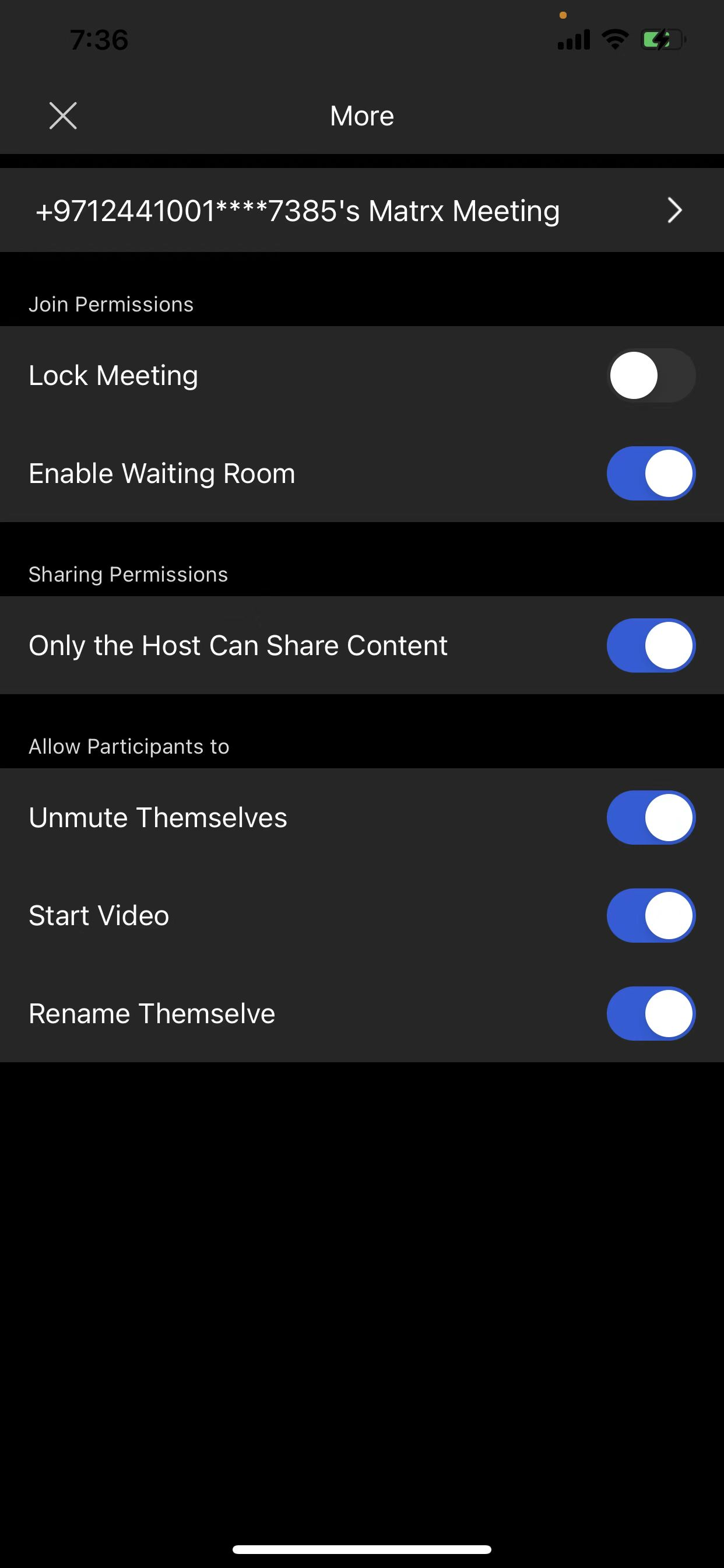 Lock / Unlock meeting
By default, the meeting is not locked, which means that participants can join the meeting at any time. If the host locks the meeting, new participants can't join the meeting anymore. The host can unlock the meeting again to let new participants join.
Control Participant Permissions
The host can enable or disable the participants' permission by simply clicking the checkbox.
The action switch determines the participant to unmute by himself.
The operation switch item decides the participant starts the video by himself.
Action toggles choose what the participants share.
The action switch determines that the participant renames himself.
Operate the toggle to determine whether to open the waiting room.
Leave & End Meeting
Leave: When leaving the meeting while there are still participants remaining in the meeting and the host left without assigning a new host, then there will be no host in the meeting. No one can edit the control functions or the participants' permissions, or end the meeting.
End for all: When the host left the meeting and he/she ends the meeting for all, then all the participants in the meeting will be forced to leave. No one else will remain in the meeting.
Lock / Unlock meeting
By default, the meeting is not locked, which means that participants can join the meeting at any time. If the host locks the meeting, new participants can't join the meeting anymore. The host can unlock the meeting again to let new participants join.
Control Participant Permissions
The host can enable or disable the participants' permission by simply clicking the checkbox.
The action switch determines the participant to unmute by himself.
The operation switch item decides the participant starts the video by himself.
Action toggles choose what the participants share.
The action switch determines that the participant renames himself.
Operate the toggle to determine whether to open the waiting room.
Leave & End Meeting
Leave: When leaving the meeting while there are still participants remaining in the meeting and the host left without assigning a new host, then there will be no host in the meeting. No one can edit the control functions or the participants' permissions, or end the meeting.
End for all: When the host left the meeting and he/she ends the meeting for all, then all the participants in the meeting will be forced to leave. No one else will remain in the meeting.